How to Flash Infinix Firmware Using MTK Scatter File: A Step-by-Step Guide
| Views: 2696 | ||
This blog offers a beginner-friendly guide to flashing Infinix firmware with an MTK Scatter File. Guide tackling software glitches, unbricking your device, fixing unknown IMEI issues, resolving dead boot, recovery mode errors, auto-reboot problems, fastboot mode glitches, or virus infections, or simply upgrading your Infinix phone’s software, this step-by-step tutorial has you covered.

What You’ll Need Before You Start
- Infinix FirmwareFirmware – InfinixROM.com
- MTK Scatter File
- SP Flash Tool (v5.2208 recommended)
- Tecno Flash Tool
- SP_Flash_Tool_edited_By+Kurdish+Gsm.rar (Recommended)
- USB Drivers: Install MediaTek USB Drivers.
- USB Cable
- A Windows PC:
- Charged Infinix Device
Step-by-Step Guide to Flash Infinix Firmware
Step 1: Install MTK USB Drivers
Start by downloading and installing the MTK USB drivers on your Windows PC. These drivers allow your computer to detect your Infinix device when connected via USB. Restart your PC after installation to ensure they’re properly set up.
Step 2: Download and Extract Firmware
Locate the official firmware for your Infinix model online. Once downloaded, extract the ZIP file to a folder on your PC. Inside, you’ll find the MTK Scatter File (usually named something like MTxxxx_Android_scatter.txt) along with other firmware files.
Step 3: Install and Launch SP Flash Tool
Download the latest version of SP Flash Tool from a reputable site. Extract it to a folder and run the flash_tool.exe file as an administrator. The tool’s interface might look technical, but don’t worry—we’ll guide you through it.

Step 4: Load the Scatter File
In SP Flash Tool, click the “Scatter-loading” button. Navigate to the folder where you extracted your firmware and select the MTK Scatter File. The tool will automatically load all associated firmware files into the interface.

Step 5: Configure Flashing Options
Ensure a smooth flashing process by addressing potential errors. It’s recommended to uncheck the Preloader, TKV, DTBO, and TRANFS files in SP Flash Tool if you encounter issues during flashing.
Under the “Download” tab, ensure the “Download Only” option is selected unless you’re unbricking a device (then choose “Firmware Upgrade”). Double-check that all firmware components are ticked in the list.

Step 6: Connect Your Infinix Device
Power off your Infinix phone completely. Connect it to your PC using the USB cable while holding the Volume Down button (or the specific key combination for your model). This puts the device into flashing mode.
Step 7: Start the Flashing Process
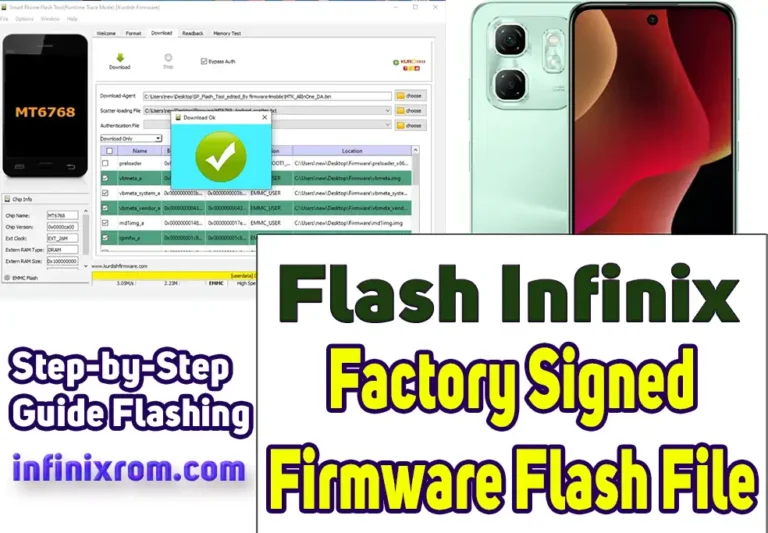
Click the green “Download” button in SP Flash Tool. The tool will begin flashing the firmware to your device. A progress bar will appear—do not disconnect your phone during this process. Once completed, you’ll see a “Download OK” message.

Step 8: Disconnect and Restart
Safely disconnect your phone from the PC. Press and hold the power button to restart your Infinix device. The first boot may take a few minutes as the system initializes the new firmware.
Tips for a Successful Flash
- Verify your firmware matches your exact Infinix model to avoid bricking.
- Use a stable USB port and cable to prevent interruptions.
- Backup your data before flashing, as this process wipes everything.
- If SP Flash Tool fails to detect your phone, reinstall the MTK drivers.
Conclusion
Flashing Infinix firmware with an MTK Scatter File is a process when you follow these steps. With tools like SP Flash Tool and the right preparation, you can fix software issues or update your device in no time. Try it out and get your Infinix phone running smoothly again!
Need Help?
Join our Infinix Support Forum for real-time assistance with firmware flashing.